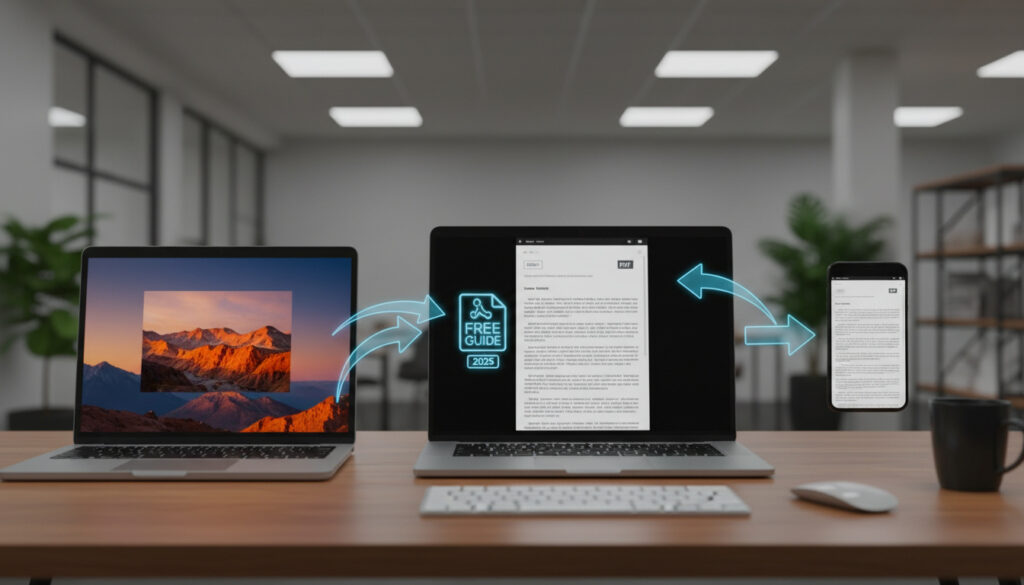
Convert JPG to PDF – Free Guide for Windows, Mac, Mobile 2025
Converting JPG images to PDF format remains an essential task for document archiving, professional presentations, and secure sharing. Whether working with single photographs or extensive batches of high-resolution scans, users require reliable methods that preserve image quality while maintaining privacy.
The landscape of conversion tools has evolved significantly, offering both browser-based solutions for quick tasks and robust desktop applications for sensitive materials. Free options now match premium software in functionality, providing batch processing capabilities across Windows, macOS, iOS, and Android platforms without imposing watermarks or file size restrictions.
This guide examines the most effective free methods available in 2025, detailing platform-specific workflows, quality preservation techniques, and security considerations for both online and offline conversion scenarios.
How to Convert JPG to PDF for Free Online
Browser-based converters dominate the market for users seeking immediate results without software installation. These tools operate across all major operating systems, requiring only an internet connection and modern web browser.
| Online Tools | Windows Built-in | Mac Preview | Mobile Apps |
|---|---|---|---|
| Drag-and-drop interfaces No installation required Auto-deletion policies |
Microsoft Print to PDF System-level integration No additional downloads |
Native export functions Immediate preview capability Lossless conversion |
iOS Files integration Android batch processing Camera roll access |
Key considerations when selecting free conversion services include:
- Speed versus quality trade-offs: Rapid upload processes may apply compression algorithms that reduce DPI.
- File size impacts: High-resolution scans exceeding 50MB often trigger limitations in browser-based tools.
- Privacy protocols: Reputable services implement automatic server deletion within one hour of conversion.
- Batch processing limits: Free tiers typically restrict simultaneous uploads to 20-50 images.
- Format flexibility: Leading converters accept PNG, BMP, GIF, TIFF, and HEIC alongside standard JPG.
- Watermark policies: Premium features may apply branding to outputs exceeding certain page counts.
- Cross-device synchronization: Cloud-based solutions enable workflow continuation between desktop and mobile environments.
| Method | Free? | Batch? | Quality | Device |
|---|---|---|---|---|
| Adobe Acrobat Online | Yes | Limited | High | Any browser |
| PDFgear Online | Yes | Yes | High | Any browser |
| iLovePDF Web | Yes | Yes | High | Any browser |
| LightPDF Desktop | Yes | Yes | High | Windows/Mac |
| Icecream PDF Converter | Yes | Yes | High | Windows |
| Microsoft Print to PDF | Yes | Yes | Good | Windows PC |
| Mac Preview | Yes | Yes | High | macOS |
| iOS Files App | Yes | Limited | Good | iPhone/iPad |
| LightPDF Mobile | Yes | Yes | High | Android/iOS |
Adobe Acrobat Online supports JPG, PNG, BMP, GIF, and TIFF formats with automatic high-resolution conversion and no registration requirements. PDFgear offers similar functionality with additional support for SVG and WebP formats, maintaining quality through customizable layout and margin settings.
How to Convert JPG to PDF on Windows
Windows environments provide multiple pathways for image conversion, ranging from built-in system utilities to specialized third-party software capable of handling sensitive documents offline.
Native Print to PDF Functionality
Microsoft Windows includes a virtual printer driver enabling direct PDF creation from any image viewer. Opening a JPG in the Photos application and selecting Print allows users to choose “Microsoft Print to PDF” as the destination device. This method processes single images or entire folders simultaneously, generating documents without internet connectivity or third-party installations.
Desktop Software Solutions
Dedicated applications offer enhanced control over output parameters. Icecream PDF Converter provides batch processing with preview capabilities, allowing users to adjust scale, page orientation, and password protection before conversion. The software operates exclusively on Windows systems, processing files locally to prevent data transmission to external servers.
Desktop applications like LightPDF perform all conversions locally on your machine, ensuring sensitive documents never traverse internet connections. This approach satisfies organizational security requirements for medical records, legal documents, and proprietary imagery.
Convert JPG to PDF on Mac or Mobile Devices
Apple ecosystems and mobile platforms emphasize integration and immediacy, offering both native system tools and cross-platform applications for on-the-go document creation.
macOS Preview Export
Apple’s Preview application provides direct JPG to PDF conversion without auxiliary software. Users open images in Preview, select Export from the File menu, and choose PDF as the output format. The utility preserves original resolution and supports multi-image selection for combined document creation.
iOS Native Workflows
iPhone and iPad users utilize the Share sheet functionality within the Photos app. Selecting images, tapping Share, choosing Print, and then pinching outward on the print preview generates a PDF saved directly to the Files application. This method requires no additional downloads and processes images entirely on-device.
Android Solutions
Android devices access conversion through browser-based interfaces or dedicated applications like iLovePDF. The platform also supports Google Drive integration, where uploading JPGs and opening them with Google Docs creates downloadable PDF versions suitable for batch processing entire folders.
How to Convert Multiple JPGs to PDF Without Losing Quality
Batch conversion demands careful attention to resolution preservation and file ordering. Professional workflows often involve hundreds of high-resolution scans requiring consistent output parameters.
LightPDF supports unlimited batch processing through its desktop interface, maintaining original DPI settings via lossless compression algorithms. Users arrange images through drag-and-drop interfaces, with options to merge multiple JPGs into single PDF documents or generate separate files for each source image.
High-quality conversion requires maintaining original image dimensions. Tools like PDFgear and Icecream provide scale adjustment features ensuring scanned documents retain clarity for printing and archival purposes.
Online converters may automatically compress images exceeding specific file sizes. For archival-quality results involving photographs above 300 DPI, offline desktop applications prevent artifacting and color degradation associated with server-side optimization.
PC Guide notes that modern batch tools support advanced features including OCR integration, allowing converted PDFs to contain searchable text extracted from embedded images.
Step-by-Step Conversion Process
Executing a successful conversion follows a predictable sequence regardless of platform or tool selection.
- Source selection: Identify and organize JPG files, verifying image orientation and sequence for multi-page documents.
- Tool initialization: Launch selected software or navigate to browser-based converter, ensuring adequate storage space for output files.
- Upload/Import: Transfer images via drag-and-drop or file selection dialogs, arranging order through interface controls.
- Parameter configuration: Adjust page size, orientation, margins, and compression settings to match intended use case.
- Quality verification: Utilize built-in preview functions to inspect output appearance before final processing.
- Execution: Initiate conversion, monitoring progress indicators for large batches.
- Distribution: Save to local storage or cloud services, verifying file integrity through secondary opening.
Capabilities and Limitations
Understanding the boundaries of free conversion tools prevents workflow interruptions and quality disappointments.
| Established Capabilities | Uncertain or Variable Factors |
|---|---|
| All reviewed tools maintain original resolution when configured correctly | Maximum file size limits vary by server load and provider policies |
| Batch processing supports 100+ files simultaneously in desktop applications | Processing speed depends on local hardware or connection bandwidth |
| Offline tools provide 100% privacy through local processing | OCR accuracy fluctuates based on image clarity and text complexity |
| Cross-platform compatibility ensures document accessibility | Color profile preservation may vary between RGB and CMYK workflows |
When to Use JPG to PDF Conversion
PDF containers offer distinct advantages over raster image formats for specific professional contexts. The format maintains visual consistency across devices and operating systems, preventing unintended alterations to document appearance.
Legal and medical sectors favor PDF for its annotation capabilities and security features, including password protection and restricted editing. What Is a No-Code Platform – Guide to Features and Examples illustrates how document automation tools integrate conversion APIs into broader workflow management systems.
Academic submissions and print publications often require PDF formatting to ensure photographs and diagrams appear at intended dimensions regardless of recipient display settings.
Official Documentation and Standards
Major software providers maintain specific protocols regarding image conversion quality and file handling procedures.
Adobe Acrobat Online converts images to high-resolution PDF without applying watermarks or requiring user registration, supporting JPG, PNG, BMP, GIF, and TIFF formats across all devices.
Adobe Acrobat Documentation
Icecream PDF Converter processes files locally on Windows machines, offering password protection and preview capabilities for batch operations involving multiple image formats.
Icecream Apps Technical Specifications
Choosing Your Conversion Method
Selection between online and offline tools depends primarily on document sensitivity and processing volume. Browser-based solutions suit occasional single-file conversions, while desktop applications address recurring batch needs and confidential materials. Convert JPG to PDF – Free Tools for Windows, Mac, Mobile provides additional platform-specific recommendations for users operating across multiple devices.
Common Questions
Can I convert JPG to PDF without an internet connection?
Yes. Desktop applications like LightPDF, Icecream PDF Converter, and PDFgear operate entirely offline on Windows and Mac systems, processing files locally without uploading to servers.
Will converting JPG to PDF reduce image quality?
Quality loss occurs only when compression settings exceed original file parameters. Using high-quality or lossless settings maintains original DPI and resolution.
How many JPG files can I convert simultaneously?
Desktop tools like PDFgear and LightPDF support unlimited batch processing. Online services typically limit free users to 20-50 files per operation.
Are online JPG to PDF converters secure?
Reputable services including Adobe, PDFgear, and iLovePDF implement automatic file deletion within one hour of conversion. Sensitive documents should use offline tools.
Can I convert other image formats to PDF using these tools?
Most converters support PNG, BMP, GIF, TIFF, HEIC, and WebP formats in addition to JPG, with some offering SVG conversion capabilities.
Is password protection available for converted PDFs?
Icecream PDF Converter and similar desktop applications offer password encryption settings during the conversion process, restricting access to authorized users.
More related posts
 Sydney Half Marathon – 2025 Dates Course Registration Guide
 Somerton Road Medical Centre – Bulk Billing GPs Roxburgh Park
 Pho Near Me – Best Authentic Spots In Orange County
 Kleenex Toilet Paper – Does It Exist, Facts and Alternatives
 Travel Insurance Quote – How to Get the Best in 2025
 Spider Solitaire Free – Best Sites Apps No Download
 Meta Quest 2 – Price and Availability UK 2025
 Kanye West Wife – Bianca Censori Biography & Timeline