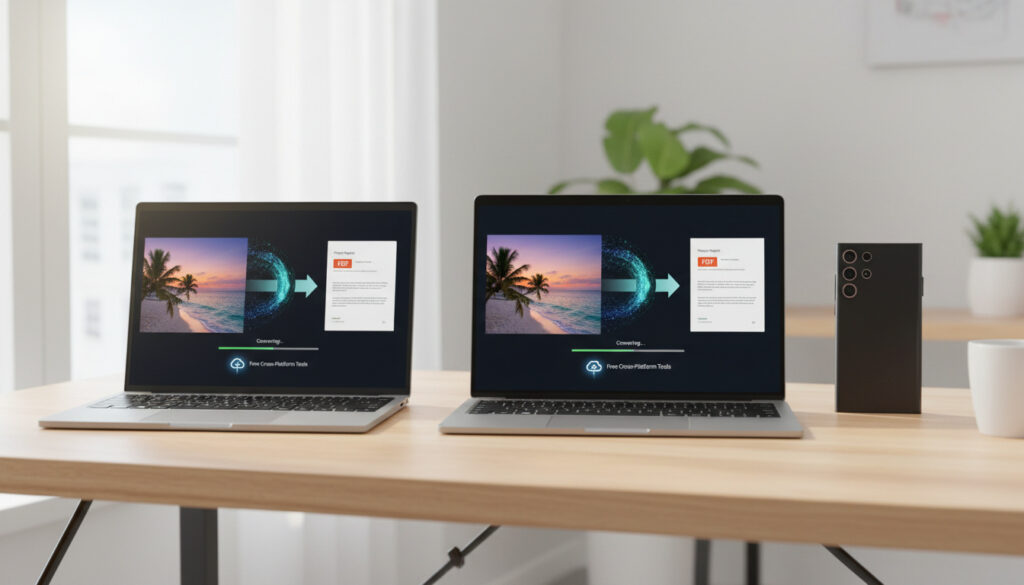
Convert JPG to PDF – Free Tools for Windows, Mac, Mobile
Portable Document Format files maintain visual consistency across devices, making them essential for sharing photographs, scanned documents, and digital artwork professionally. Converting JPG images to PDF ensures compatibility with archival systems and prevents formatting discrepancies when recipients view documents on different screens. Free browser-based tools and built-in operating system features now handle this transformation without requiring software installation or technical expertise.
Modern conversion methods range from local browser processing that never uploads files to cloud-based services with automatic deletion protocols. Users can process single images or batch-convert hundreds of files while preserving original resolution and metadata.
How to Convert JPG to PDF Online for Free
| Online Free Tools | Windows Built-in | Mac Preview | Mobile Apps |
|---|---|---|---|
| Browser-based platforms like PDFgear and Adobe Acrobat process files instantly without downloads. Drag-and-drop interfaces support batch uploads across all operating systems. | Microsoft Print to PDF creates documents directly from the Photos app. No internet connection or third-party software required. | Native Preview application combines and exports images without additional tools. Maintains original quality through system-level processing. | iOS and Android devices convert images through native share sheets or dedicated applications. Works on phones and tablets without desktop dependencies. |
Key considerations when selecting conversion methods:
- Browser-based converters like PDFgear process files locally, ensuring data never leaves the device
- Batch conversion handles multiple images simultaneously while maintaining original resolution
- Windows and Mac offer offline alternatives using pre-installed system tools
- Mobile conversions function through native OS features without mandatory third-party apps
- Free tiers rarely impose watermarks on standard document conversions
- HTTPS encryption protects data during upload for cloud-based solutions
- Drag-and-drop interfaces eliminate complex technical workflows
| Method | Speed | File Limits | Quality Output | Security Level |
|---|---|---|---|---|
| PDFgear | Instant | Unlimited | High (local processing) | Maximum (no upload) |
| PDF24 | Instant | No limits | High | High (file protection active) |
| FreeConvert | 1-2 minutes | Variable | Adjustable | Medium (HTTPS, auto-delete) |
| Adobe Acrobat Online | Instant | No size limits | High | Medium (secure servers) |
| Windows Print to PDF | 30-60 seconds | System dependent | Native resolution | Maximum (offline) |
| Mac Preview | 10-30 seconds | System dependent | Native resolution | Maximum (offline) |
How to Convert Multiple JPGs to One PDF
Combining numerous images into a single document streamlines sharing and archiving workflows. Professional photographers, legal professionals, and administrative staff regularly merge dozens of high-resolution files into unified PDF portfolios.
Online Batch Processing
PDF24 enables users to drag multiple files simultaneously into the browser window, arranging them through intuitive drag-and-drop interfaces before final conversion. The platform imposes no quantity limits and maintains original image sequencing. Smallpdf offers similar functionality with additional preview capabilities, allowing visual verification of page order before downloading the final document.
Desktop Batch Solutions
Adobe Acrobat Pro provides comprehensive batch processing capabilities for Windows and Mac systems, though this requires software installation beyond browser-based solutions. The desktop application maintains original DPI settings and offers optical character recognition for scanned documents. For offline batch processing, the PDF24 desktop application operates without internet connectivity, processing files directly on local hardware.
Rename files numerically (001_document.jpg, 002_document.jpg) before uploading to online converters. This ensures chronological ordering without manual rearrangement in the conversion interface, particularly useful when processing scanned multi-page contracts or photo sequences.
Convert JPG to PDF on Windows or Mac Without Software
Both major operating systems include native PDF creation capabilities that require no additional downloads, internet connections, or subscription fees. These methods process files entirely on local hardware.
Windows Native Method
The Microsoft Print to PDF virtual printer driver converts images directly from the Photos application. Users select desired JPG files, initiate the print command, then choose Microsoft Print to PDF as the destination printer. This method handles multiple images simultaneously through multi-select functionality, creating a single PDF document with pages in the selected order.
macOS Preview Method
Preview combines multiple images through its export functionality. Selecting files in Finder and opening them in Preview allows users to highlight thumbnails in the sidebar, then export directly as PDF through the File menu. This native approach preserves original image quality without compression artifacts or resolution loss.
Built-in OS methods process files locally without internet transmission, eliminating data interception risks associated with cloud uploads. This characteristic makes native tools preferable for confidential medical records, legal documents, or proprietary business images.
Best Practices for Quality and Security When Converting JPG to PDF
Conversion quality varies significantly between tools depending on compression algorithms and processing locations. Security protocols differ between locally-executed browser code and server-based cloud processing.
Preserving Image Quality
Tools utilizing local browser processing, such as Drawboard, maintain original resolution and DPI settings by avoiding server-side compression. These platforms execute conversion code within the user’s browser, preventing quality degradation common in cloud-based systems. Users should verify output settings support minimum 300 DPI when preparing documents for professional printing.
Security Considerations
Cloud-based converters like FreeConvert utilize HTTPS encryption during transmission and implement automatic file deletion protocols within hours of processing. Adobe Acrobat processes files on secure servers with automatic deletion unless users explicitly save to cloud accounts. However, users handling sensitive materials should verify specific data retention policies, as exact deletion timeframes vary between services.
While major platforms claim automatic deletion, specific retention periods and backup procedures remain proprietary and unaudited. For classified materials or legally sensitive documents, offline conversion using Windows Print to PDF or Mac Preview eliminates third-party exposure entirely.
The JPG to PDF Conversion Sequence
Understanding the temporal workflow helps users estimate processing times and identify potential bottlenecks in document preparation.
- File Selection: Users verify image formats (JPG, PNG, BMP, TIFF, GIF) compatibility.
- Upload Phase: Files transfer via drag-and-drop or selection dialogs. Local tools execute immediately without transmission delays.
- Sequencing: Platforms like PDF24 allow drag-and-drop reordering of thumbnails.
- Configuration: Users adjust orientation, margins, and page size parameters.
- Processing: Conversion algorithms embed images into PDF containers, typically completing within seconds to minutes depending on file sizes.
- Retrieval: Final documents download via secure HTTPS connections.
Established Capabilities and Persistent Uncertainties
While conversion technology remains straightforward, specific operational details vary between platforms and use cases.
| Established Facts | Uncertain or Variable Elements |
|---|---|
| Local browser processing (PDFgear, Drawboard) never transmits files to external servers, ensuring complete data privacy | Exact data retention periods for free cloud-based services remain proprietary and unaudited by third parties |
| Windows and Mac operating systems provide native conversion capabilities without third-party software or internet connectivity | Long-term archival stability of PDFs created through browser-based tools versus desktop software lacks comparative studies |
| Batch conversion maintains original file resolution when using quality-focused tools with adjustable compression settings | Specific compression algorithms applied by free tiers of commercial platforms vary and may change without notice |
| HTTPS encryption protects data during transmission for online converters that require server processing | Jurisdictional data storage locations for cloud processors remain unclear for many free services, complicating GDPR or HIPAA compliance |
Why Professionals Convert Images to PDF
PDF format ensures document fidelity across different devices, operating systems, and software versions. Unlike JPG files that render differently depending on viewer applications and color profiles, PDF maintains precise layout control and embeds fonts consistently. This stability explains why legal contracts, medical imaging, and professional portfolios require conversion before distribution. For a quick and easy way to convert pounds to kilograms, you can use $Convert pounds to kilograms.
Modern automation has simplified these technical workflows. What Is a No-Code Platform – Guide to Features and Examples illustrates how contemporary tools eliminate programming requirements for complex document management tasks, making batch processing accessible to non-technical users.
Archival considerations also drive conversion decisions. PDF/A, an archival standard format, ensures images remain accessible decades into the future, whereas JPG compression standards may evolve or become obsolete. Document management systems universally accept PDF, while JPG support varies in enterprise content management platforms.
Technical Specifications and Official Sources
Major conversion platforms publish specific technical details regarding file handling and security protocols.
Files never leave the device during conversion; processing occurs entirely within the browser using local JavaScript engines.
— PDFgear Technical Documentation, 2025
Secure servers process uploads with automatic deletion within hours unless users explicitly save to Adobe Document Cloud accounts.
— Adobe Acrobat Online Security Whitepaper
Key Takeaways for JPG to PDF Conversion
Free browser-based tools like PDFgear and PDF24 handle most conversion needs without installation, while Windows Print to PDF and Mac Preview provide offline alternatives for sensitive documents. Users prioritizing security should select local-processing tools or built-in OS features, whereas those needing batch processing might prefer cloud solutions with verified encryption. For webmasters managing document workflows, verifying proper URL redirects ensures conversion tools remain accessible; WWW Redirect Checker by Alaikas – Free Guide to Chain Checks offers technical guidance on maintaining proper site architecture for resource access.
Common Questions About Image Conversion
Is there a completely free JPG to PDF converter?
Yes. PDFgear, PDF24, and Drawboard offer unlimited free conversions without watermarks or file quantity limits. These tools generate revenue through optional premium features rather than basic conversion restrictions.
What mobile apps convert JPG to PDF?
iPhone users can convert images natively through the Photos app using Share > Print > pinch to expand > Save to Files. Android devices convert through Google Drive or Photos using Print > Save as PDF. Third-party options include Adobe Scan, Smallpdf, and iLovePDF applications.
How do I convert JPG to PDF without losing image quality?
Select tools offering local browser processing or adjustable DPI settings. Avoid platforms that apply automatic compression. Preview on Mac and Print to PDF on Windows maintain native resolution. When using online tools, verify they support high-resolution outputs before uploading.
Are online JPG to PDF converters safe for confidential documents?
Reputable platforms use HTTPS encryption and automatic deletion, but data temporarily resides on external servers. For confidential materials, use offline methods like Windows Print to PDF or Mac Preview, which process files exclusively on local hardware without internet transmission.
Can I convert multiple JPGs to one PDF on iPhone?
Yes. Select images in Photos, tap Share, choose Print, then pinch outward on the print preview to generate a PDF. Alternatively, use the Files app to select multiple images and create PDF directly through the options menu without third-party applications.
Does converting JPG to PDF reduce file size?
Generally, no. PDFs typically match or exceed JPG sizes due to container overhead, though some tools offer compression options. For size reduction, use dedicated PDF compression tools after conversion rather than relying on format change alone.
More related posts
 Individual Tax Rate 2025 – UK Band , Allowance & Calculator
 444 Angel Number – Full Guide to Its Meaning and Symbolism
 Public Toilet Near Me – Best Apps and Maps Guide
 Village Cinema Fountain Gate – Showtimes, Parking & Gold Class
 Crystal Maze – TV Show, Live Experience & Ticket Guide
 Happy Gilmore 2 Reviews – What Critics and Fans Really Think
 Jordan Belfort – Net Worth, Wife, and True Story in 2025
 Woolworths Near Me Open Now – Find Store Hours & Locations